---
title: File Upload Page
description: Overview of the File Upload Page
---
[Skip to content](https://help.envisioncreates.com/knowledge/file-upload-page#main-content)
English
Show submenu for translations
[Submit Ticket](https://help.envisioncreates.com/knowledge/kb-tickets/new?hsLang=en)
![Envision-Logo-Positive (2)-1.png\]](https://help.envisioncreates.com/hs-fs/hubfs/Envision-Logo-Positive%20(2)-1.png?height=21&name=Envision-Logo-Positive%20(2)-1.png)
Open main navigation
Close main navigation
- English
Show submenu for translations
- [Submit Ticket](https://help.envisioncreates.com/knowledge/kb-tickets/new)
- Go to envisioncreates.com
Go to envisioncreates.com
Hello. How can we help you?
- There are no suggestions because the search field is empty.
1. [CMS Help Center](https://help.envisioncreates.com/knowledge?hsLang=en)
2. [Media Library](https://help.envisioncreates.com/knowledge/media-library?hsLang=en)
# File Upload Page
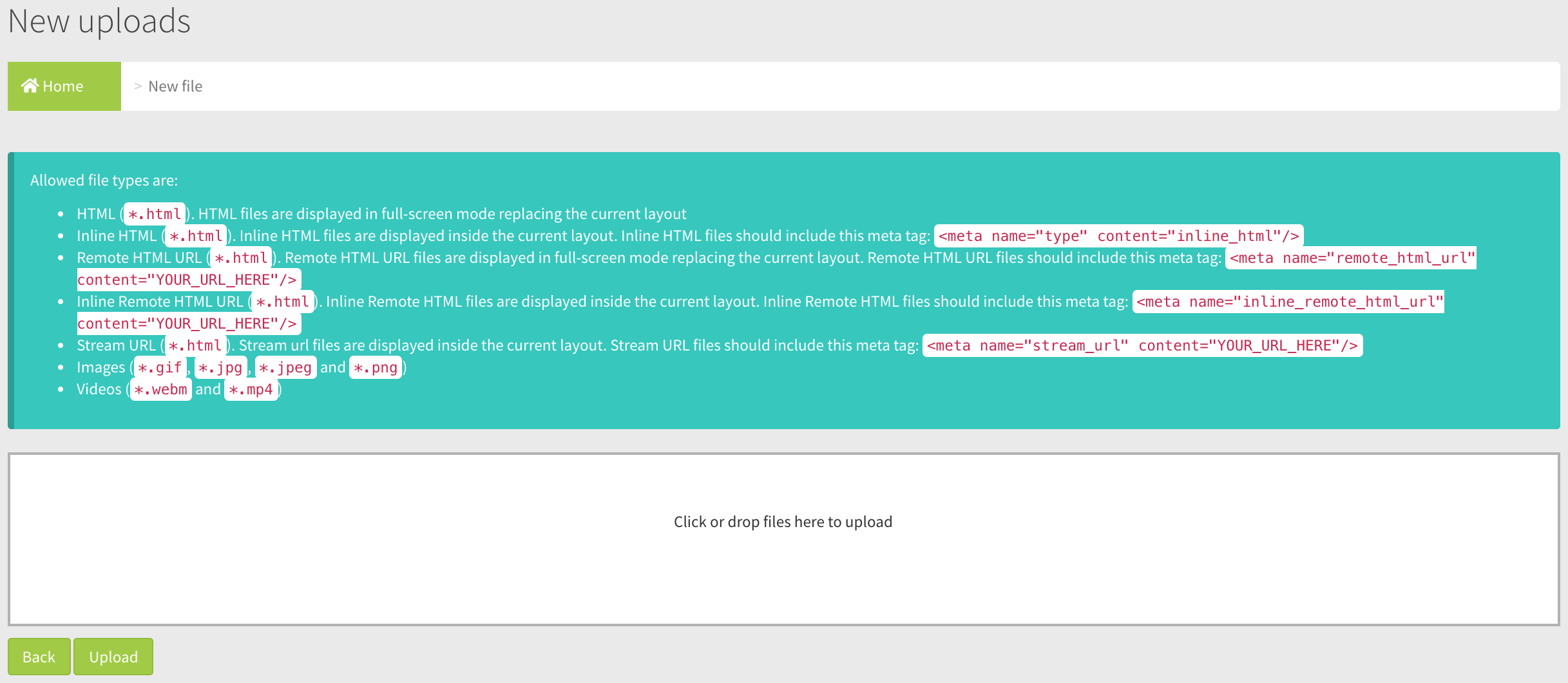
## Overview of the File Upload Page
### 
### Field and Button Descriptions
**Allowed file types**
**Image Variants**
- GIF
- JPG
- JPEG
- PNG
Note that these files will be processed by the Dashboard system and converted to PNGs, so do not use animated GIFs.
**Videos**
- WEBM
- MP4
Must use H264 video codec, and AAC audio codec.
**HTML Variants**
- HTML; HTML files are displayed in full-screen mode replacing the current layout
- Inline HTML; HTML files with the meta tag \ in the head area.
- Remote HTML URL; HTML files with the meta tag \. This is displayed in full-screen mode replacing the current layout with the URL in "content=".
- Inline Remote HTML URL; HTML files with the meta tag \.
**File Upload Area**
Drag and drop the file(s) from your desktop, or click in the upload area to select from a window. Please note that this does not actually upload the file, but instead selects the file for upload. File upload happens once hitting the Upload button at the bottom left.
**Upload button**
Once all files are in the File Upload Area, click the Upload button. This will begin upload of the files from your computer into the dashboard. Note that this can sometimes take several minutes due to the image processing conversions and potentially more time if the files are exceptionally large.
*Note: There is a 2GB file size limit. If larger files are required, please contact your Envision Account Manager to arrange for a temporary increase of file size limits.*
- [CMS Login](https://help.envisioncreates.com/knowledge/cms-login?hsLang=en)
- [Devices](https://help.envisioncreates.com/knowledge/devices?hsLang=en)
- [Canvas](https://help.envisioncreates.com/knowledge/canvas?hsLang=en#main-content)
- [Widgets](https://help.envisioncreates.com/knowledge/canvas?hsLang=en#widgets)
- [Playlists](https://help.envisioncreates.com/knowledge/playlists?hsLang=en)
- [Media Library](https://help.envisioncreates.com/knowledge/media-library?hsLang=en)
- [Tables](https://help.envisioncreates.com/knowledge/tables?hsLang=en)
- [Scheduled Actions](https://help.envisioncreates.com/knowledge/scheduled-actions?hsLang=en)
- [Reports](https://help.envisioncreates.com/knowledge/reports?hsLang=en)
- [Device Groups](https://help.envisioncreates.com/knowledge/device-groups?hsLang=en)
- [Companies](https://help.envisioncreates.com/knowledge/companies?hsLang=en)
- [Users](https://help.envisioncreates.com/knowledge/users?hsLang=en)
[](http://envisioncreates.com)
Help Center
Copyright © 2026, Envision