---
title: Device Groups Page
description: Overview of the Device Groups Page
---
[Skip to content](https://help.envisioncreates.com/knowledge/device-groups-page#main-content)
English
Show submenu for translations
[Submit Ticket](https://help.envisioncreates.com/knowledge/kb-tickets/new?hsLang=en)
![Envision-Logo-Positive (2)-1.png\]](https://help.envisioncreates.com/hs-fs/hubfs/Envision-Logo-Positive%20(2)-1.png?height=21&name=Envision-Logo-Positive%20(2)-1.png)
Open main navigation
Close main navigation
- English
Show submenu for translations
- [Submit Ticket](https://help.envisioncreates.com/knowledge/kb-tickets/new)
- Go to envisioncreates.com
Go to envisioncreates.com
Hello. How can we help you?
- There are no suggestions because the search field is empty.
1. [CMS Help Center](https://help.envisioncreates.com/knowledge?hsLang=en)
2. [Device Groups](https://help.envisioncreates.com/knowledge/device-groups?hsLang=en)
# Device Groups Page
## Overview of the Device Groups Page
### 
### Field and Button Descriptions
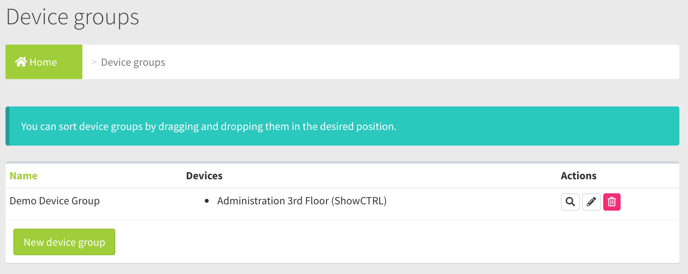
**Name**
The device group name. This is set specifically to your individual account, and not managed company-wide. This flexibility allows two different functions to have a dashboard page that is purpose-built and quick to navigate.
For example, one account could be for a graphics designer who organizes their device groups by what type of content needs created for each section, while another account could be for maintenance who organizes the devices based on the electrical circuit number for quick reference during power issues.
Once a device group is created you will see them on the left side of the page.

Green device group

All devices are online, and none have an error.
Yellow device group
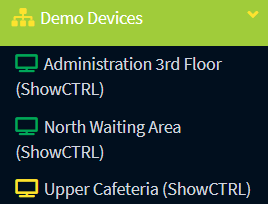
At least one device in the device group is offline, but none have errors. It's important to note that an offline device cannot check in to inform if it has an error, so a "Yellow" group should be considered with caution. The typical cause for a device group being yellow is due to the device stop checking in, which could be because the internet has stopped working at the location, the device is powered down, or the device is completely frozen past the point of checking in with an error status.
Red device group
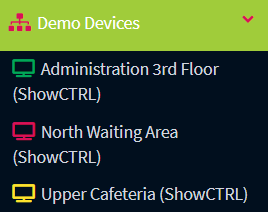
At least one device in the device group has an error. This status will have more urgency than any "Yellow" status devices. A "Red' status is generally attributed to a deviation from expected behavior, such as an LCD not checking into the media player, heat being too high, video wall configuration not automatically re-applying correctly, or a number of other reasons.
**Devices**
All device location names within the device group.
**Actions**
****
**Audit**
The Audit feature is to view all actions taken to this device group object. This creates a level of responsibility for anyone changing device group settings. [More on this feature here](https://www.omnially.com/knowledge/device-group-audit-page).
**Edit**
Allows editing of the device group object's attributes. [More on this feature here](https://www.omnially.com/knowledge/device-groups-new-edit-page).
**Delete**
The device group will be deleted, but all devices within the device group will still remain accessible in the dashboard.
**New Device Group Button**
Use this button to go to the New/Edit Device Group page. [More on this feature here](https://www.omnially.com/knowledge/device-groups-new-edit-page).
### Re-ordering Device Groups
Re-ordering is a common occurrence when creating, restructuring, or removing device groups. This can be accomplished through either:
**Device Group Side Section**
The more common way to re-order device groups is to drag them into the order you want on the side bar itself. Using this method the Device Page groups will not automatically re-order until the page is refreshed or navigated away from. That said, you can use this method on any dashboard page at any time to re-order the device groups.
**Device Groups Page**
To re-order the device groups from within the Device Groups page you will simple drag the groups to the order you want. Using this method the device groups in the side section will not update until you refresh the browser or navigate to the next page.
- [CMS Login](https://help.envisioncreates.com/knowledge/cms-login?hsLang=en)
- [Devices](https://help.envisioncreates.com/knowledge/devices?hsLang=en)
- [Canvas](https://help.envisioncreates.com/knowledge/canvas?hsLang=en#main-content)
- [Widgets](https://help.envisioncreates.com/knowledge/canvas?hsLang=en#widgets)
- [Playlists](https://help.envisioncreates.com/knowledge/playlists?hsLang=en)
- [Media Library](https://help.envisioncreates.com/knowledge/media-library?hsLang=en)
- [Tables](https://help.envisioncreates.com/knowledge/tables?hsLang=en)
- [Scheduled Actions](https://help.envisioncreates.com/knowledge/scheduled-actions?hsLang=en)
- [Reports](https://help.envisioncreates.com/knowledge/reports?hsLang=en)
- [Device Groups](https://help.envisioncreates.com/knowledge/device-groups?hsLang=en)
- [Companies](https://help.envisioncreates.com/knowledge/companies?hsLang=en)
- [Users](https://help.envisioncreates.com/knowledge/users?hsLang=en)
[](http://envisioncreates.com)
Help Center
Copyright © 2026, Envision